
I wanted to take my local LLM setup one step further: put an agent in front of it. Keep the model on my machine, but give it a desktop interface, tools, and a way to work beyond a single chat reply.
The stack I connected was Hermes Agent + LM Studio Bionic + Gemma 4 E4B on Windows. Hermes handles the conversation and tools. Bionic hosts the model through a local API. Gemma generates the responses.
The connection comes down to two values:
Base URL: http://localhost:1234/v1
Model:    google/gemma-4-e4b
This walkthrough follows my September setup, with the working configuration captured on September 26. The model inference runs locally. Optional features such as web search and Telegram still use network services, which matters when deciding what “all local” means for a particular task.
Select any screenshot to open it at full resolution.
How the pieces fit together#
Hermes Agent is the agent application. It manages sessions, tool execution, and the conversation around the model. The model does not execute a command itself: the agent handles that part and can pass the result back for another response.
LM Studio Bionic is a separate app from classic LM Studio, with its own agent features and support for local models through the LM Studio runtime. In this setup, I use its Local Model API as Hermes’s model backend. Bionic’s own chat interface is not an extra agent step in the request path.
Gemma 4 E4B is the model loaded behind that API. Selecting a different model in Hermes only works if the server can actually serve that identifier.
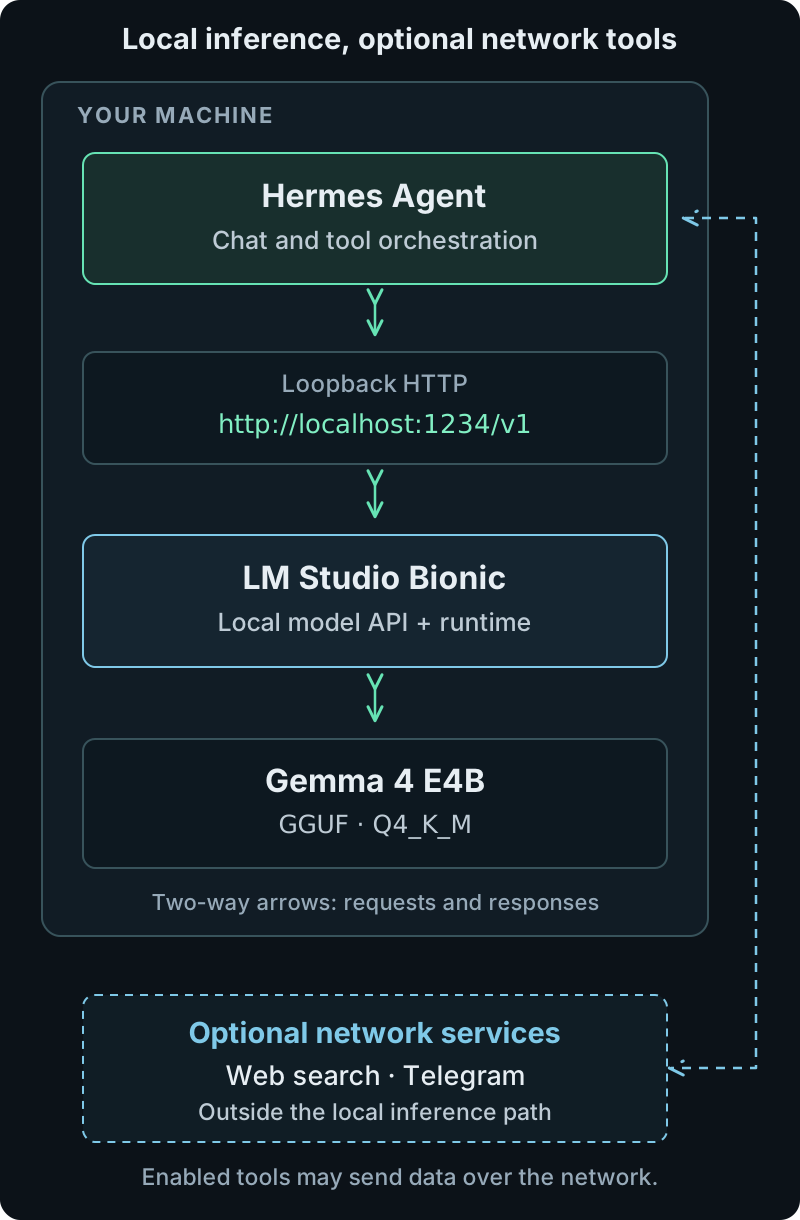
The inference path stays on the machine. Network tools are a separate part of the agent workflow.
The interface is OpenAI-compatible: it uses a familiar request format while sending requests to localhost. It does not require an OpenAI-hosted model. LM Studio documents both the model-listing and chat-completion endpoints in its API compatibility documentation.
1. Install Hermes and download the model#
Start with the Hermes desktop download and LM Studio downloads. Choose Bionic for the interface shown here. Installation and the initial model download need internet access.
My earlier Hermes setup screen shows the installer preparing Python, Git, Node.js, and the desktop dependencies. Let the first-time setup complete before configuring the provider.
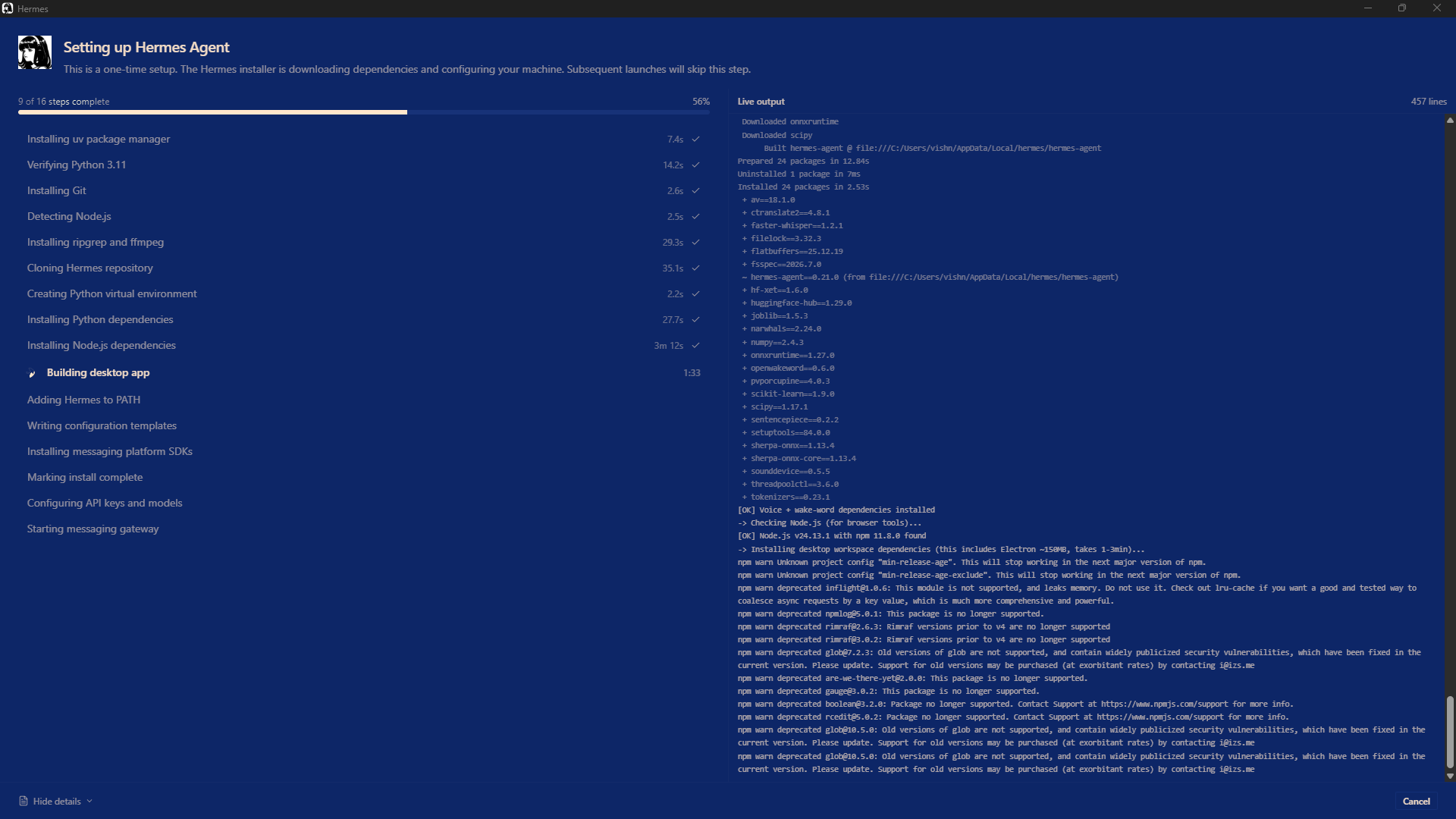
The initial Windows setup on September 1. Later launches use the installed environment.
In Bionic, open Settings → Local Models → Explore, find Gemma 4 E4B, and download the instruction-tuned model. These are the details visible in my setup:
| Item | My selection |
|---|---|
| Model | Gemma 4 E4B Instruct |
| Local API identifier | google/gemma-4-e4b |
| Format | GGUF |
| Quantization | Q4_K_M |
| Displayed model size | 6.33 GB |
| Execution location | This device |
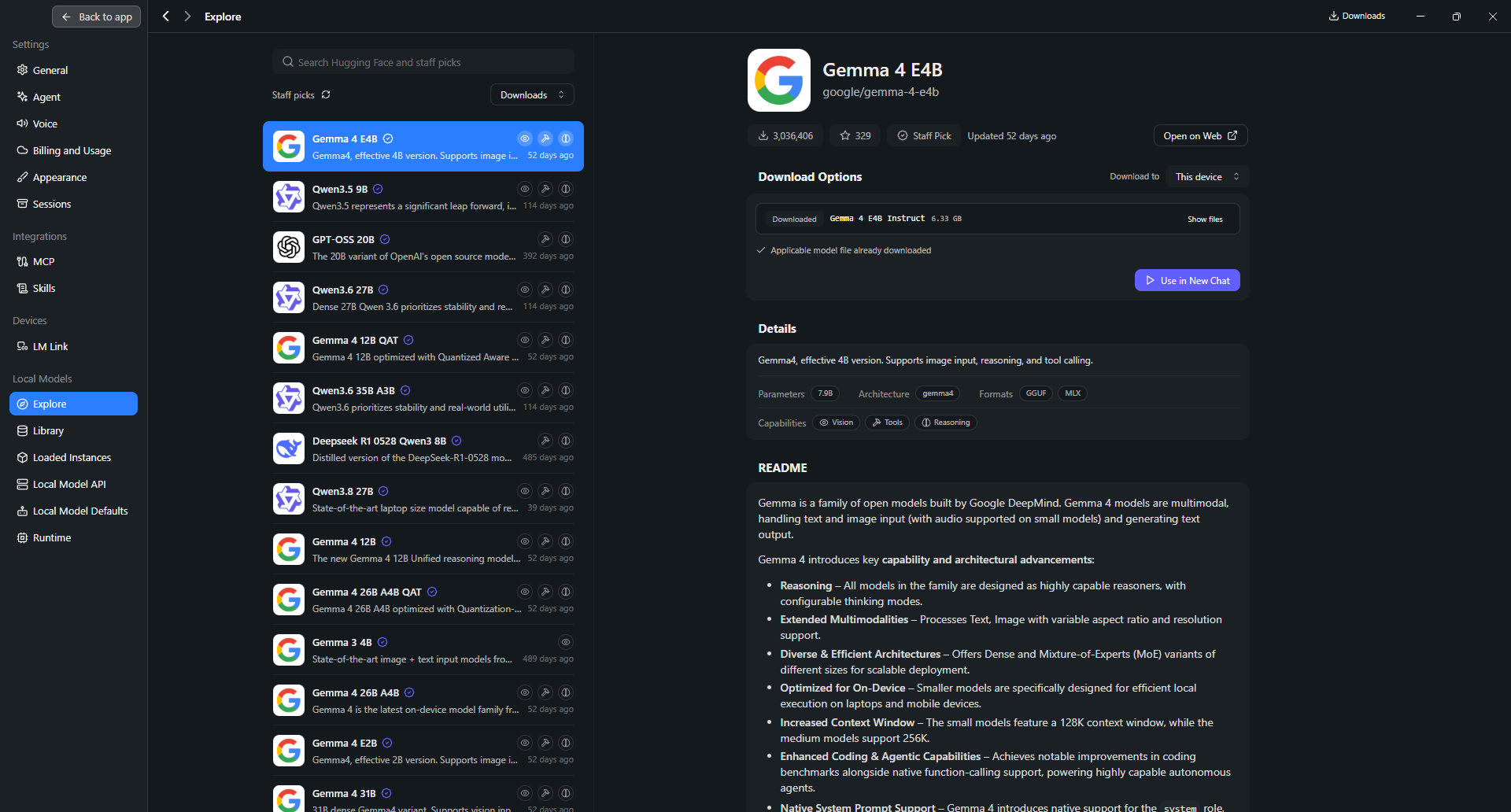
Gemma 4 E4B downloaded in Bionic. The model page advertises vision, tools, and reasoning capabilities.
The E in E4B means effective. Google’s model card lists approximately 4.5 billion effective parameters and 8 billion with embeddings. That is why treating E4B as a conventional 4-billion-parameter weight file can give the wrong memory expectation, as detailed in Google’s Gemma 4 model card.
Also distinguish the local serving name from the upstream repository. Google’s instruction-tuned model card is google/gemma-4-E4B-it; the endpoint in my screenshots serves it as google/gemma-4-e4b. Use the name your local server reports.
2. Start the Local Model API#
Open Settings → Local Model API in Bionic and turn on the server. My screen shows:
- Local API server: Running
- Base URL:
http://localhost:1234/v1 - Just-in-time model loading: On
- CORS: Off
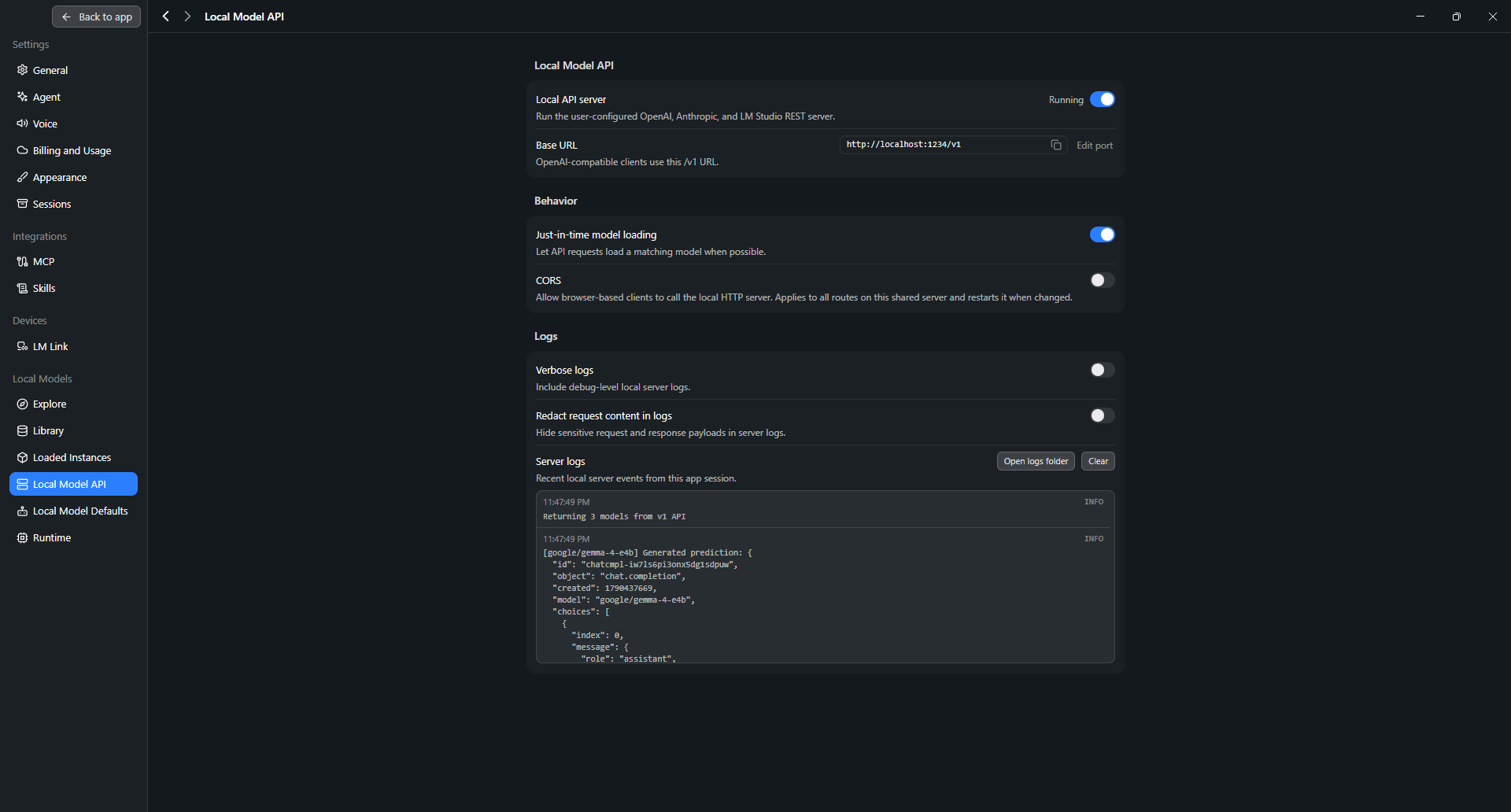
Bionic’s local server is running. The log also records a completion for google/gemma-4-e4b.
Just-in-time loading lets an API request load a matching model when possible. For the first check, it is still useful to confirm the model appears under Loaded Instances, so a download or loading issue is easier to spot.
The screenshots keep CORS off. It is not a general connection switch to enable whenever a client fails; it concerns browser-origin requests. First check the server address, model, and authentication settings.
Both apps run on the same Windows machine here. If Hermes runs inside WSL, a container, or another computer, localhost refers to that environment instead. The address may then need to change.
3. Add the endpoint in Hermes#
In Hermes, open Settings → Providers → Custom Endpoints. Create a named endpoint so it is easy to recognize in the provider list.
| Field | Value shown in my setup |
|---|---|
| Name | LMStudio Local |
| Provider ID | lmstudio-local |
| Endpoint URL | http://localhost:1234/v1 |
| API Mode | Auto-detect |
| Default Model | google/gemma-4-e4b |
| Context | Auto |
| Use for new chats | Enabled |
| Discover models | Enabled |
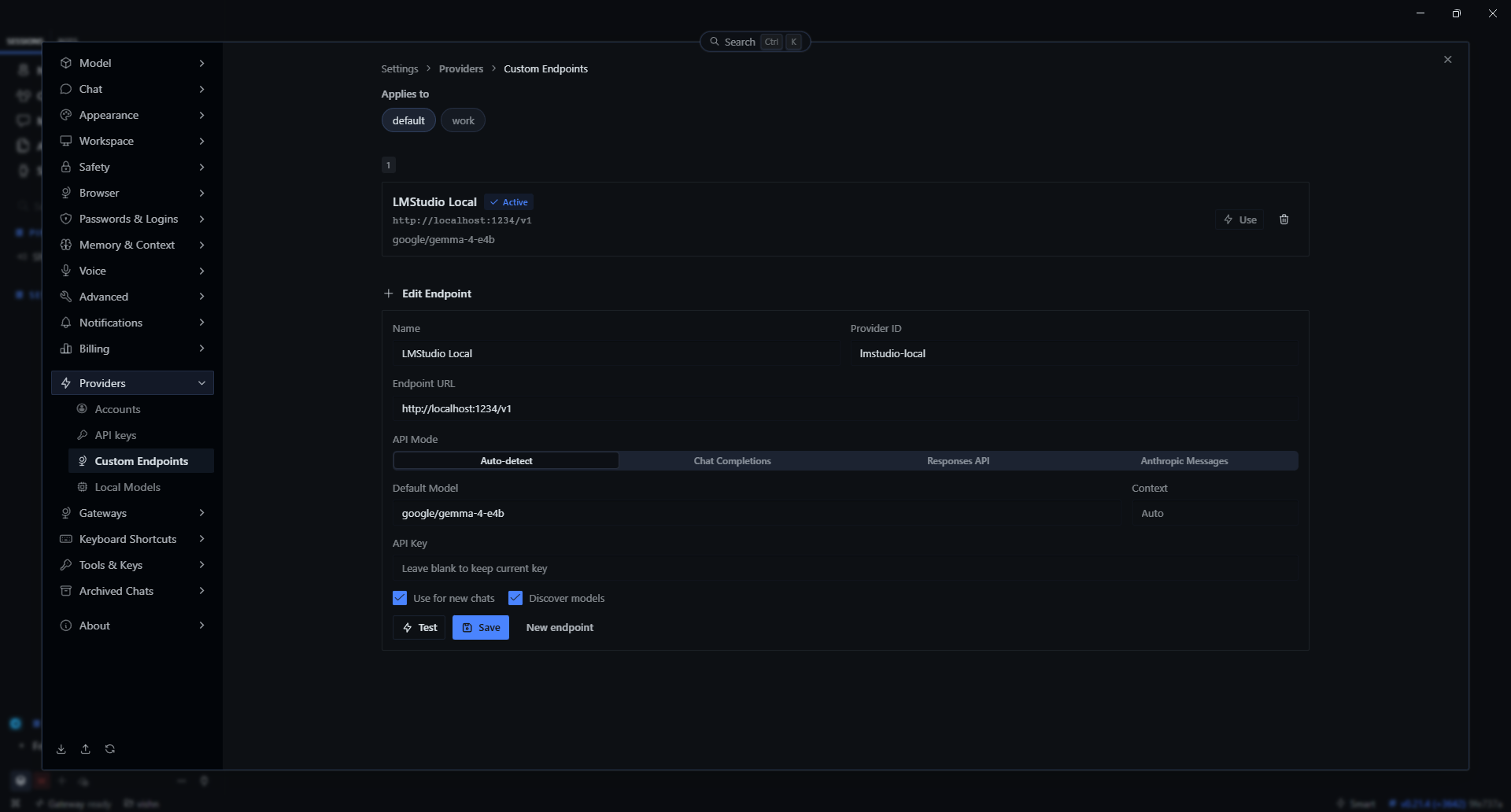
The working custom endpoint on September 26. Hermes and Bionic must agree on the base URL and model identifier.
Use the base URL, including /v1, in the endpoint field. Do not paste the full /v1/chat/completions request URL there.
Authentication depends on the server configuration. LM Studio’s API documentation says authentication is disabled by default; if you enable it, supply the matching local API token in Hermes. A placeholder saying “Leave blank to keep current key” does not reveal whether an existing key is stored, as noted in the LM Studio authentication documentation.
Click Test, then Save, and activate the endpoint with Use if needed. Check the active profile as well: my screen has separate default and work scopes.
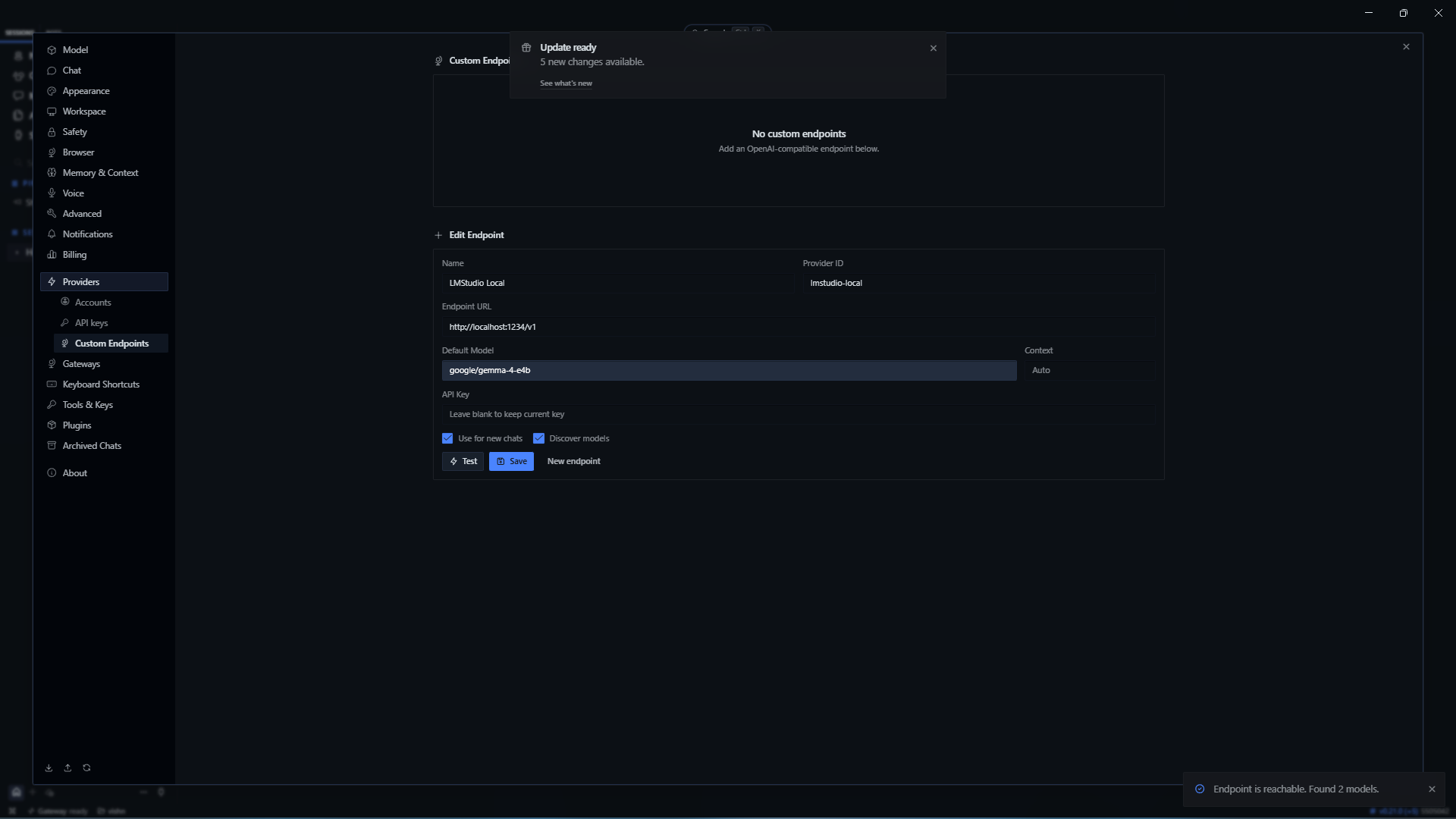
An earlier September 1 check returned: Endpoint is reachable. Found 2 models. Your count depends on the local model inventory.
Current Hermes also documents a built-in LM Studio provider through hermes model, described in the Hermes provider guide. The custom endpoint route above is the desktop configuration used in these screenshots.
4. Check the request from both sides#
Start a new Hermes session and confirm the model selector says Gemma 4 E4B. A saved default does not necessarily change the provider of an existing conversation.
Send a small prompt first, such as Hi Hermes. While it runs, inspect Loaded Instances in Bionic. My capture shows Gemma on This device, with an active request marked Generating.
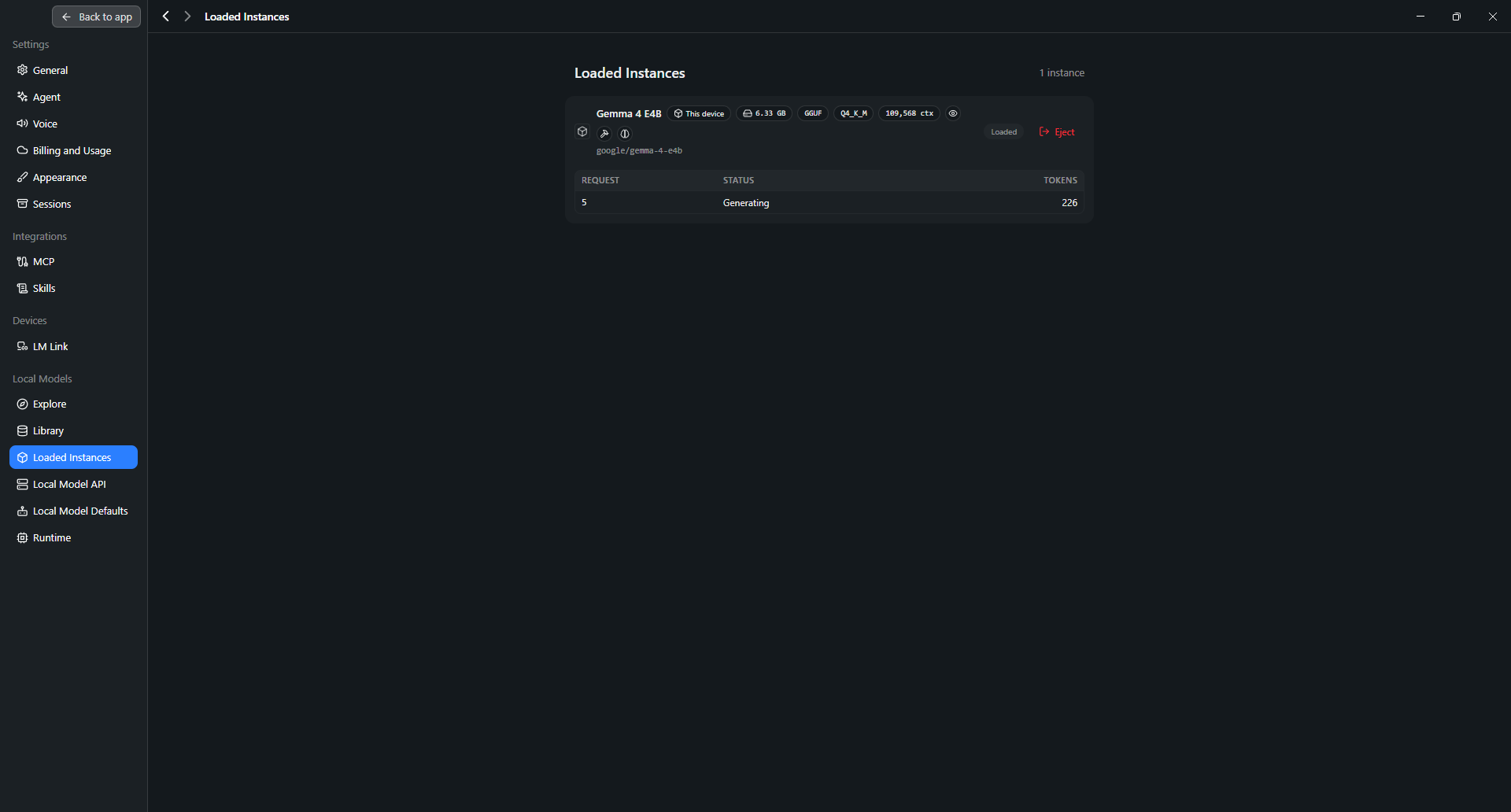
The local runtime is doing work: Gemma 4 E4B has an active generation request.
This is a better check than the model selector alone: Hermes points to the local provider, and the local server shows generation for the same model.
The numbers on this screen need some care. 226 is a token count, not tokens per second. 6.33 GB is the displayed model size, not a measurement of total runtime memory. 109,568 ctx is the loaded context setting in this instance, not a long-context benchmark or a setting everyone should copy.
Model weights, context cache, and runtime overhead all consume memory. If loading or generation struggles, reduce the configured context and check actual RAM/VRAM use. Google’s memory-planning notes also distinguish model weights from context and other runtime allocations.
Optional: check the API directly with PowerShell#
This diagnostic separates a server problem from a Hermes configuration problem. Run it on the machine hosting Bionic. The first request lists model identifiers:
$baseUrl = "http://localhost:1234/v1"
$headers = @{}

# Only needed if you enabled authentication on the local server.
if ($env:LM_API_TOKEN) {
    $headers.Authorization = "Bearer $env:LM_API_TOKEN"
}

$models = Invoke-RestMethod -Uri "$baseUrl/models" -Headers $headers
$models.data | Select-Object id
Then send a small chat request, using the exact ID returned by your server:
$body = @{
    model = "google/gemma-4-e4b"
    messages = @(
        @{
            role = "user"
            content = "In one sentence, explain what local inference means."
        }
    )
    stream = $false
} | ConvertTo-Json -Depth 6

$response = Invoke-RestMethod `
    -Uri "$baseUrl/chat/completions" `
    -Method Post `
    -Headers $headers `
    -ContentType "application/json" `
    -Body $body

$response.choices[0].message.content
A model-list response proves the server is reachable and the model is discoverable; a completion proves the runtime can actually generate. LM Studio documents these separately as List Models and Chat Completions.
5. Try a tool, then inspect what happened#
After the greeting worked, I asked Hermes about the weather in Singapore. The conversation shows a search step, followed by a weather response, with Gemma 4 E4B selected in the composer.
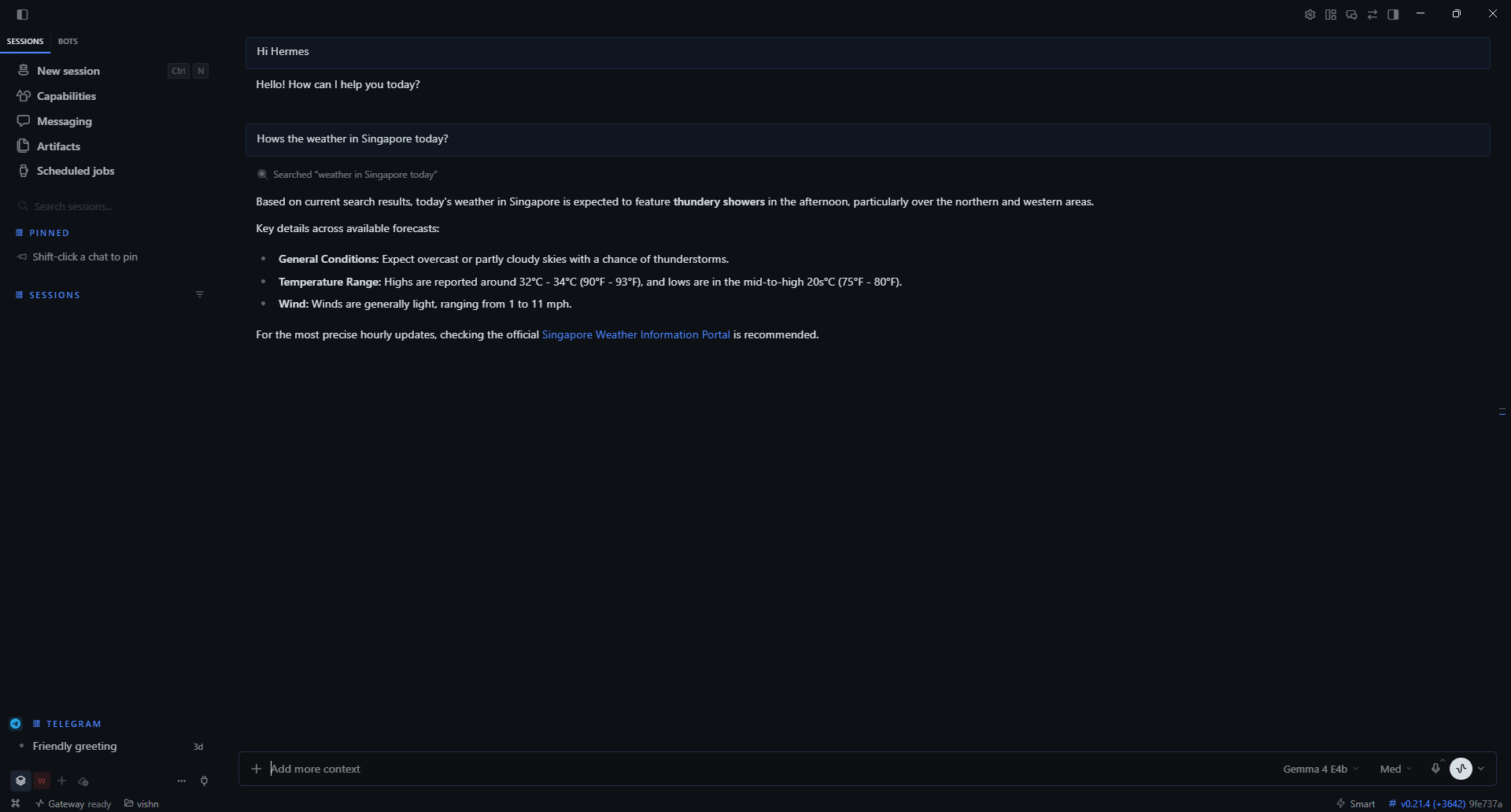
A chat reply followed by a tool-assisted weather answer. The model is local; the search needs the network.
That is the interesting step beyond plain local chat: the agent fetched information through a tool and used it in the reply. It shows the plumbing works, not that the search result is accurate, so for something like live weather, trust the source over the summary.
Hermes exposes its skills and tools through Capabilities. This allows connecting local CLI tools (such as developer utilities or sandboxes) alongside broader integrations. The Skills Hub is useful for discovering workflows, but an installed skill can still call external services or require separate credentials. Check which endpoints or external services a skill calls before assuming the whole workflow stays on the machine, as covered in the Hermes web-tool documentation.
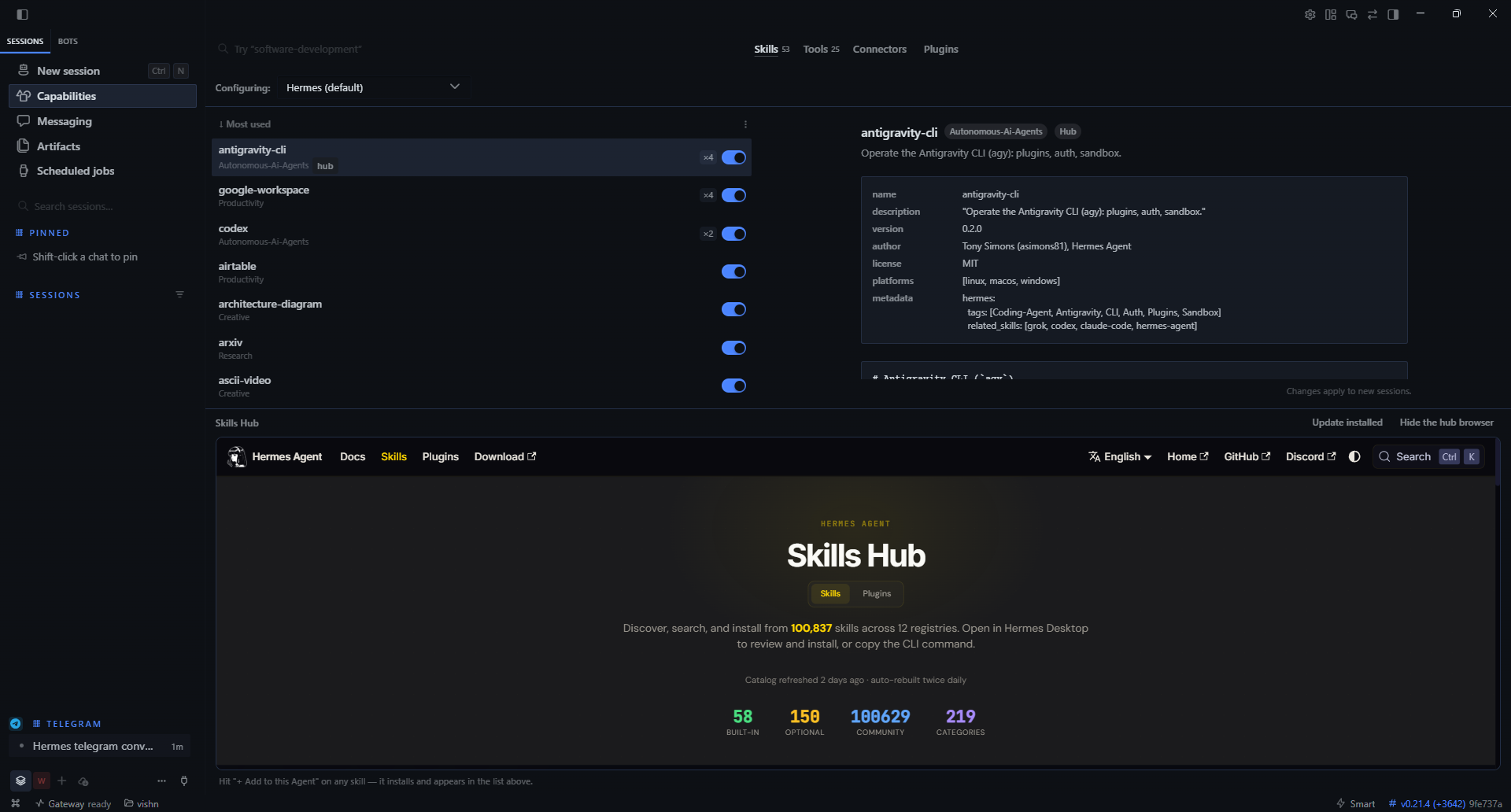
Capabilities adds workflows around the local model. Catalog availability is separate from what has been installed and tested.
For a useful local follow-up, try a small workspace task: ask Hermes to read a README and summarize the project, or explain a short log file. Start with a read-only request and review the tool activity before moving on to edits.
Where “all local” begins and ends#
For this configuration, the agent application and model runtime are on my machine, and the selected model is served over loopback. There is no hosted LLM required for that main inference path.
| Activity | Where it happens |
|---|---|
| Gemma response generation | Local LM Studio runtime |
| Hermes conversation and orchestration | Local desktop app |
| Reading a local file through a local tool | On the machine |
| Initial app and model downloads | Network required |
| Web search and fetched pages | External network services |
| Telegram messaging | Telegram’s network |
| Other skills, connectors, or auxiliary models | Depends on their configuration |
LM Studio supports offline inference with downloaded models. To check an entirely offline Hermes workflow, disable network-dependent integrations, check any auxiliary model settings, disconnect the network, and try the exact local task you intend to use. The connected weather example above is not that test.
Optional: reach Hermes through Telegram#
I also connected Telegram during the earlier setup. Hermes’s messaging settings let you configure a bot and restrict access to approved users. Follow the official Telegram setup guide for the token, user access, and gateway steps.
This gives you a messaging interface to the agent while the model can continue running locally. The host machine, Hermes gateway, and local model server need to remain available. Messages still pass through Telegram, so this is a network-connected extension of the setup.
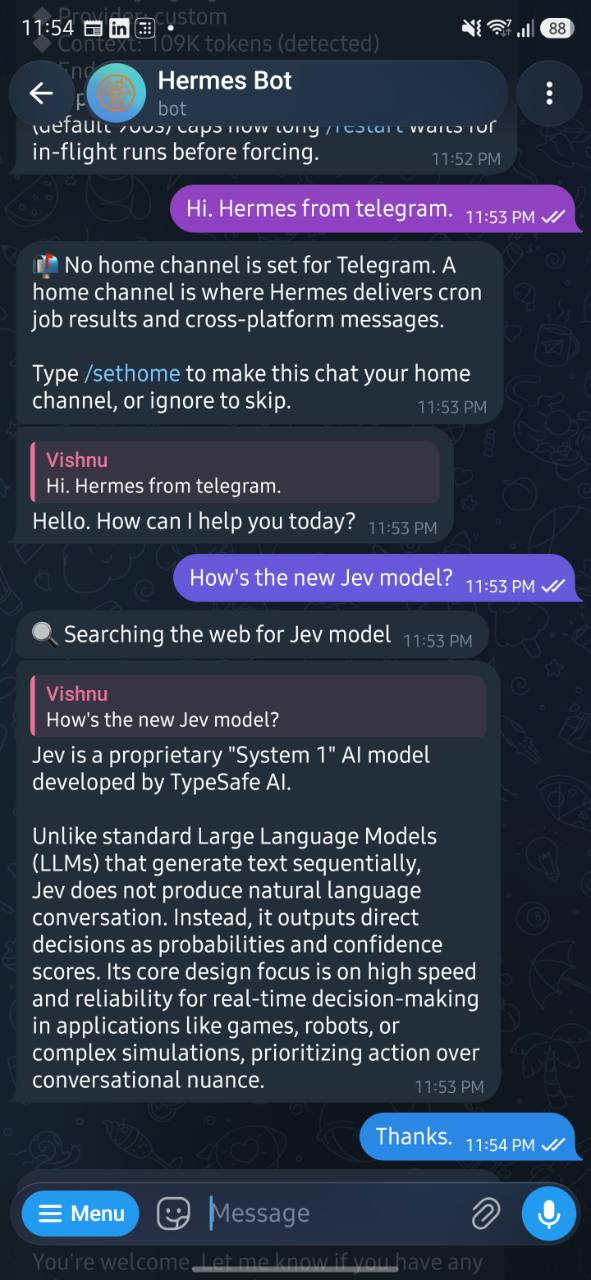
Hermes receives the Telegram message, runs a web search, and replies through the bot.
If something does not work#
| Symptom | What to check first |
|---|---|
| Connection refused | Bionic is running, the Local Model API is on, and the port matches. |
| Endpoint works in PowerShell but not in Hermes | Base URL, active endpoint, profile, and selected conversation model. |
| Model not found | Copy the exact ID from /v1/models; a display name or upstream repository name may differ. |
| HTTP 401 or missing authorization | Confirm which provider received the request, then check its authentication requirements. |
| Unexpected API-format errors | The shown setup uses Auto-detect. If detection fails, explicitly try Chat Completions, which the server supports. |
| Loading fails or generation becomes very slow | Available memory, context allocation, competing loaded models, and runtime/offload settings. |
| Chat works but a tool fails | Tool configuration, permissions, and model/runtime support for tool calls. A text reply alone does not test these. |
| Telegram stops replying | Host availability, gateway status, allowed users, and access to the local model server. |
The part I wanted to prove here was straightforward: Hermes can use my locally served Gemma model as its backend. The endpoint test, the model’s active generation, and the resulting conversation make that connection visible.
From here, I would evaluate it task by task: local file summaries, log analysis, and small coding changes, checking both the answers and the tool actions. Getting the agent connected is the starting point; learning which work this model handles well is the next experiment.
If you are building up the same stack, my AI agent basics guide explains the model/tool loop, and running llama.cpp locally looks at the runtime side more directly.
Cheat sheet#
Hermes Agent         = the agent app: manages sessions, tools, and the conversation
LM Studio Bionic     = the app hosting the model behind a local API
Gemma 4 E4B          = the model: about 4.5B effective parameters, 8B with embeddings
Local Model API      = Bionic's OpenAI-compatible server at http://localhost:1234/v1
OpenAI-compatible    = the familiar request format, sent to localhost instead of a hosted model
Model identifier     = the name the local server reports (google/gemma-4-e4b here); use that one
Just-in-time loading = an API request can load a matching model on demand
Who runs tools       = the agent, not the model; results go back to the model for another reply
All local            = inference stays on the machine; web search and Telegram still use the network
localhost caveat     = from WSL, a container, or another machine, localhost points somewhere else